How to Make a Round Logo: Canva Steps, Tips, and
Learn how to make a round logo from scratch and in Canva. Get design tips, Canva steps, and export formats for crisp branding.
Round logos: what they are and why people use them
A round logo is a brand mark shaped inside a circle. The main element can be a monogram, an icon, or a full wordmark. What makes it “round” is the circular layout. It can be a perfect circle, or a circle with a ring, badge, or border that stays centered.
When people search “how to make a round logo,” they often want a logo that looks good in both small and large sizes. Round shapes tend to stay readable because the composition is balanced around a center point. That balance also makes it easier to place an icon above text, or text around an icon.
In practice, a round logo usually follows strong logo design rules. You pick a clear focal point and limit distractions. Then you use formatting logos techniques like spacing, alignment, and consistent stroke weight. Those graphic design principles matter even more inside a circle.
Why round logos help with branding
Round logos feel friendly and complete. They also work well for brands that want a sense of trust or consistency. You see this shape in communities, clubs, food products, and apps. Even when the style changes, the circle keeps the mark cohesive.
Round logos also adapt well to common brand uses. Many profiles and app icons use circular crops. A centered round logo keeps key details from getting cut off. That reduces rework when you need an avatar for social media or a favicon-like use.
From a practical standpoint, round marks can be simpler to design. You build a grid around the circle. Then you place elements symmetrically or with deliberate balance. This is helpful if you are learning how to create a round logo and want a repeatable layout.
- Better small-size readability due to centered composition
- More consistent look across avatars and circular placements
- Clear visual structure for icons plus text
- Strong “badge” vibe when you use rings or borders
Step-by-step: how to design a round logo from scratch
Before you open any tool, decide what the circle will hold. Pick one main idea, like a symbol and a short name. If you try to fit too many details, the logo will look busy inside the circle.
Next, sketch a layout using basic blocks. Draw a circle and add a center point. Then plan either “icon in the middle with text below” or “text wrapped around the rim.” You can also do both, as long as you keep text short.
Now focus on essential design principles for logos. Use a limited color set, and keep contrast high. Aim for shapes that work at 24px and at 240px. If you cannot recognize it at the smaller size, fix it now.
- Define the goal and audience. Write one sentence about what the brand does. Use that to pick an icon style.
- Choose a simple icon concept. Use bold shapes and avoid thin lines that disappear when scaled.
- Select a type approach. Pick a font selection that matches the brand tone. Keep the number of fonts to one family.
- Pick colors using color theory. Choose one main color plus one accent. Use a neutral if needed.
- Build the circle layout. Place the icon at center. Then add text with clear spacing.
- Check balance and spacing. Ensure equal visual weight on both sides of the center axis.
- Test multiple sizes. Zoom out. If the mark collapses, simplify shapes and text.
- Prepare for export. Plan vector graphics output if you can. This keeps edges crisp.
Round logo design tips that prevent common mistakes
Most round logo failures come from crowding. Circles leave no corners for “extra” detail. If your icon has lots of parts, merge them into larger shapes. Then use one or two accent details only.
Another common issue is font selection that ignores circular readability. If you use text around a ring, choose a font with clear letterforms. Avoid overly decorative fonts with thin strokes. Also keep letter spacing consistent so the text feels deliberate.
Finally, think about exporting images early. If you only design a raster version, you may later struggle with scaling. Whenever possible, design in a way that supports vector graphics. That keeps your logo sharp for print and large banners.
- Keep the icon bold and simple for small sizes
- Use high contrast between text and background
- Limit colors to reduce visual noise
- Center-align elements to preserve symmetry
- Use consistent stroke weight for icons and rings
Using Canva to create a round logo (detailed guide)
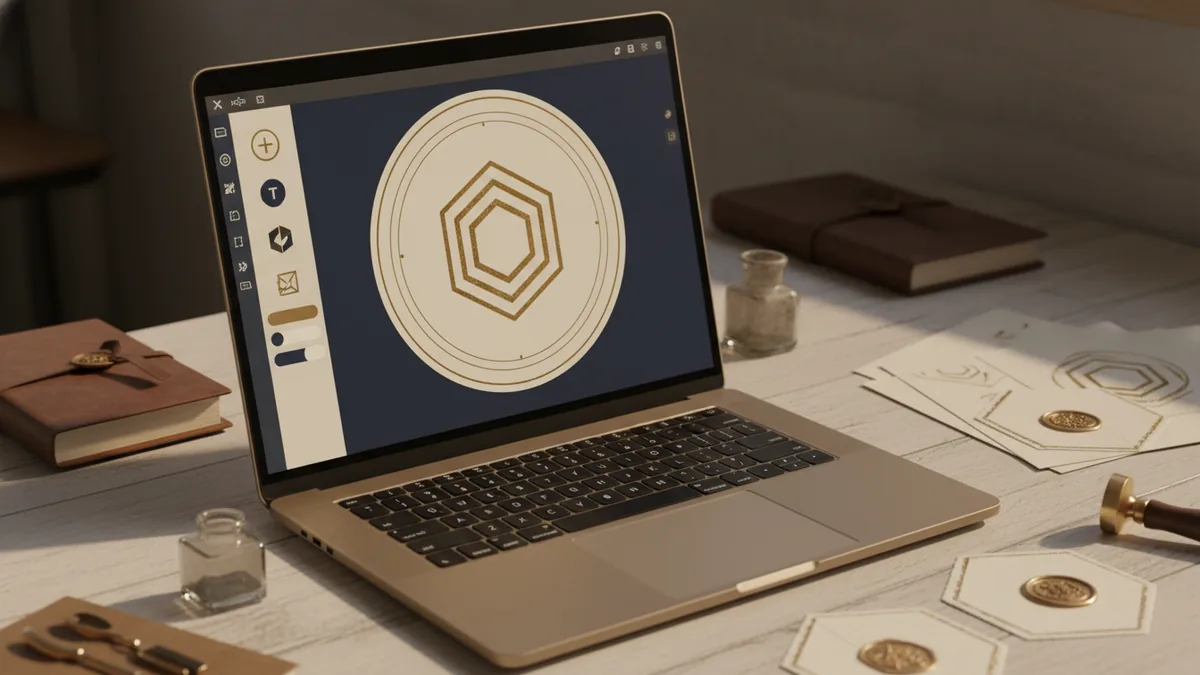
Canva is a practical way to learn how to create a round logo quickly. It provides shapes, text tools, and easy alignment. You can make a strong first version in minutes. Later, you can refine and export clean files.
Start by creating a new design. In Canva, choose a custom size if you want a specific use case. For logos, a square canvas is easiest. Then add a circle using the “Elements” or “Shapes” search.
Now build the logo in layers. Place the circle background first. Then add your icon on top. After that, add text either in the center or along a ring. Canva’s alignment tools help you keep the mark balanced.
Step 1: Set up the canvas and circle
Create a square canvas. Then add a circle shape. You can choose a filled circle for a badge look, or use a ring style for a lighter mark. Keep the circle centered on the canvas.
If you want a ring logo, use a circle outline with a thick enough stroke. Thin strokes may look weak when exported smaller. It is easier to reduce thickness later than to fix a muddy small logo.
Step 2: Add the icon or central graphic
Search for an icon that matches your brand theme. In Canva, many icons are available as simple shapes. Choose one that reads well at a small size. Then place it in the center of the circle.
Use the “Position” and “Align” controls to lock the icon to the center. If Canva allows group controls, group the icon elements together. That way you can scale without breaking the layout.
Step 3: Choose fonts and place text
Pick one font family and use it consistently. If the logo needs a name plus a tagline, keep the tagline short. A common round layout is name in the center and a short descriptor below.
If you want text around the rim, use Canva’s tools for text effects. Keep the text size large enough to read in a small preview. Then adjust letter spacing only if it looks uneven.
Step 4: Match colors to your brand
Pick colors that match your brand’s values. Use one main color for the circle or icon. Then use a second color for text or accents. Keep the background either solid or white to boost contrast.
Use Canva’s color picker to keep tones consistent. If you have two blues, pick one and stick to it. Consistency matters more than variety in logo design.
If you are specifically looking for how to make a round logo in canva, your key workflow is circle, icon, text, then alignment. If you follow that order, you avoid redesign loops. It also makes it easier to keep the layout clean.
Step 5: Keep your logo readable at multiple sizes
Preview the logo at a smaller scale in your mind. Then check by shrinking it inside Canva. If the icon or letters blur, simplify the shapes and remove tiny details.
This is the same testing logic you would use in any logo design tool. Round layouts magnify spacing mistakes because everything sits in a loop. A slight misalignment can feel “off” quickly.
Exporting your round logo for web, social, and print
Exporting images correctly is the difference between a sharp logo and a blurry one. In Canva, you can download in different file formats. For best quality, choose based on where you will use the logo.
For web and most social uses, PNG works well. It keeps transparency if you export with a transparent background. For print or future editing, SVG is usually the best choice when available. SVG supports vector graphics and stays crisp when scaled.
Also think about formatting logos for different backgrounds. For example, you may need a dark version and a light version. That way your logo stays visible on both white and colored surfaces.
| Use case | Best format | What to watch for |
|---|---|---|
| Profile icon and web uploads | PNG | Use transparent background if needed |
| Brand files and future edits | SVG | Prefer vector-friendly elements |
| Simple sharing and viewing | JPG | May lose crisp edges on text |
| Wide prints and signage | SVG or high-res PNG | Keep margins and safe areas |
How to export in Canva
Click the Share or Download button in Canva. Choose the format you need for your use. If you plan to use the logo on colored backgrounds, also export a version with a solid background.
When you download, save your files with clear names. Include the purpose and format in the file name. This helps when you later send the logo to a designer or printer.
If you are asking how to make round logo in canva for a client, keep one “master” file. Then generate exports for web, social, and print from that master. It saves time during revisions.
Conclusion and additional resources
Knowing how to design a round logo is mostly about structure. Start with a clear concept, then plan a balanced layout. Use logo design basics like contrast, spacing, and font selection. Keep the design simple so it reads at small sizes.
Canva makes the process approachable. With a circle shape, a centered icon, and well-sized text, you can create a strong round logo fast. Then export in the right format so your branding stays crisp. That is the practical path from idea to usable assets.
If you want deeper guidance on file formats and accessibility-friendly assets, start with authoritative docs on scalable vector graphics. The W3C has clear guidance on SVG support and usage via the W3C SVG specification. If you also care about font licensing and web usage, review W3C guidance on scripts and language support to avoid display issues.
- Design for readability at small sizes
- Use limited colors and bold shapes
- Plan exports early for PNG, SVG, and print
- Keep versions for light and dark backgrounds
FAQ
- What makes a logo “round”?
- A round logo is built around a circle layout. The key elements stay centered and balanced inside that circular shape.
- How do I design a round logo that stays readable?
- Use bold shapes and high contrast. Test your logo by shrinking it before you finalize details.
- How do I create a round logo in Canva?
- Make a square canvas, add a circle shape, then place your icon in the center. Add text next, align everything, and export when it looks balanced.
- Can I export a round logo for print from Canva?
- Yes. Export SVG when available for vector output. Otherwise, use a high-quality PNG sized for print needs.
- Should I export multiple versions of my round logo?
- Often yes. Export a light version and a dark version so the logo works on different backgrounds.