How to Create a Logo for Your Website: Simple
Learn how to create a logo for a website. Pick the style, design it, export web files, and avoid copying logos from other sites.

Start with your logo goal for the website
Your logo should match how people find and remember you online. Before you draw anything, decide what the logo must do on a website. It should look clear at small sizes. It should also fit where you will use it, like the header and browser tab.
Write down your brand basics in plain words. Who you help, what you sell, and what makes you different. Then choose a logo style that fits those notes. A tech brand often prefers clean shapes. A handmade shop may use warmer colors and softer forms.
Next, plan the formats you will need. You will want a small icon, a full wordmark, and a version with transparent background. If you skip this, you may end up rebuilding files later. It is easier to design for web from day one.
- Small size clarity for the top bar
- Consistent look across light and dark themes
- Ready-to-use web files and transparency
- Simple concept that scales down well
Choose a logo type that fits your website
There are a few common logo types. Picking the right one is a big part of how to create a logo for a website. If you pick the wrong type, it can look messy on a header. It may also blur when resized.
Wordmarks use your brand name as the main logo. They work best when the name is short and easy to read. Icon logos use a symbol and can work even when your name is long. Combination marks use both an icon and a name. Many sites start with a combination mark for flexibility.
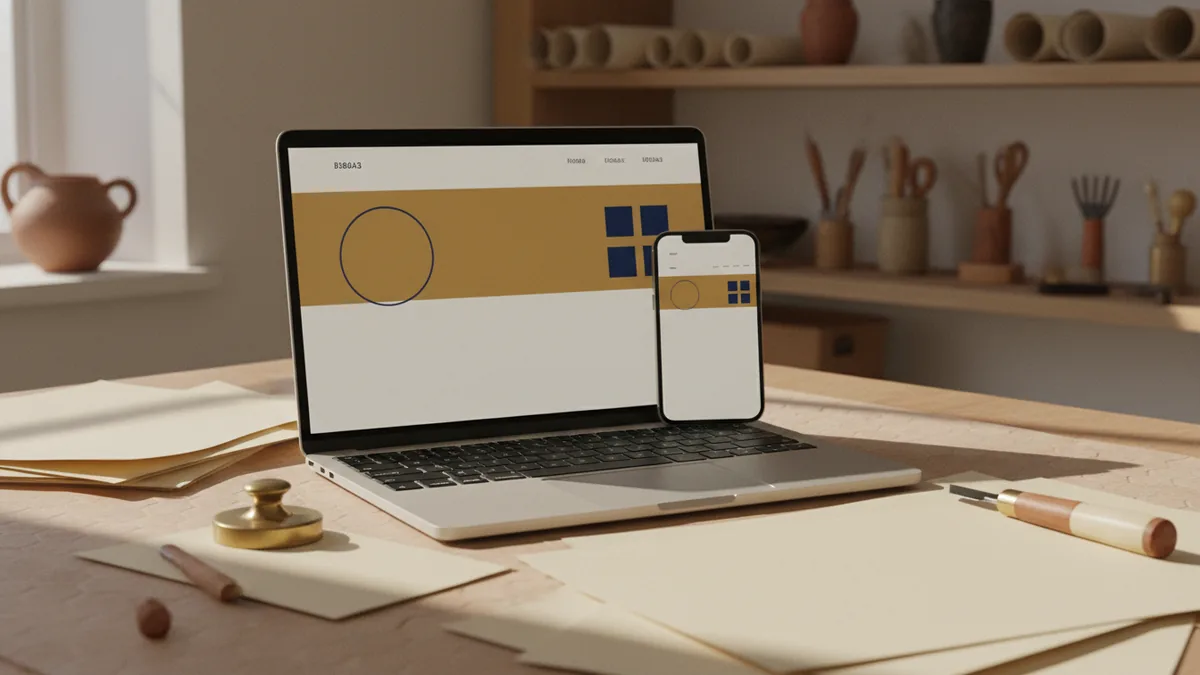
Think about your site layout too. If your header has limited height, a wide logo may feel cramped. If your site uses a lot of icons, an icon-first logo may fit better. Make a quick mock of your logo area before you finalize anything.
| Logo type | Best for | Watch-outs |
|---|---|---|
| Wordmark | Clear brand names | Small text can become blurry |
| Icon | Quick recognition | Can feel vague without a name |
| Combination | Headers and social | Needs two sizes for best results |
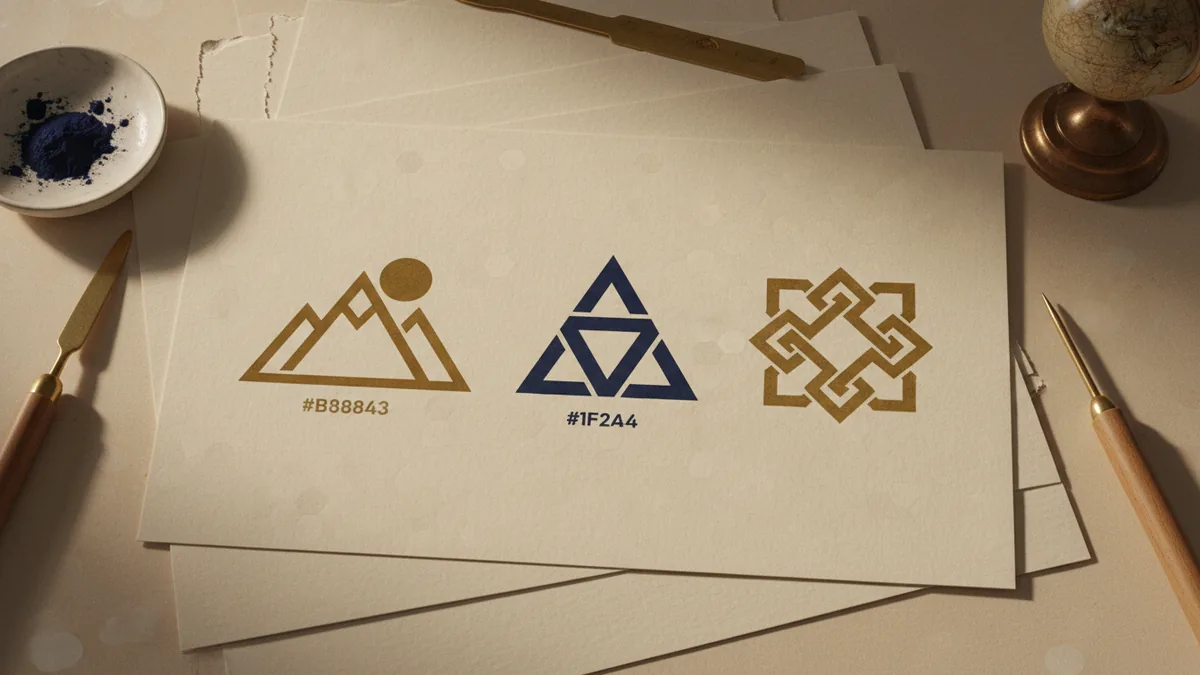
Design the logo: shapes, colors, and typography
Now you are ready for the actual design. The easiest way is to start with simple shapes. Use a grid and keep spacing even. A logo is easier to understand when it has clear geometry.
Choose a color set that matches your audience. Pick one main color and one supporting color. Add a neutral like black or white for flexibility. If your website has a dark theme, test a light version of the logo. This is key when you make logo for website headers.
Typography matters for how to create logo for website wordmarks. Choose a font that looks good at small sizes. Avoid thin strokes that vanish at 24px. Also avoid many font styles in one mark. Keep it to one font family plus maybe one weight.
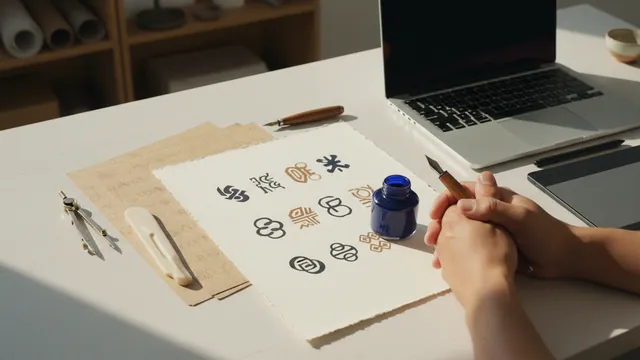
- Sketch 5 rough concepts on paper or notes
- Pick one concept and simplify it
- Choose 1 main color and 1 accent color
- Select a readable type style and size
- Export and test at small sizes immediately
Export logo files for web use
Once the logo looks right, export it in the formats you will actually use. Most websites need vector for scaling and raster for quick loading. Vector formats are best when you later update your header or landing pages. Raster formats are great for favicons and fixed-size areas.
Create at least two versions. One version should work on a light background. Another version should work on a dark background. Also keep a version with transparent background for flexible layouts. This helps when your site changes section colors.
For favicons and app icons, you need square sizes. A favicon looks best when simplified for that tiny space. If your main logo is too detailed, create an icon-only favicon. This is a common issue when people learn how to make logo in website layouts.
- SVG or PDF for scalable web graphics
- PNG with transparency for quick header use
- Square PNG icons for favicons
- Light and dark variants for themes
Do not copy logos from other websites
Many people search for how to copy a logo or how to copy a logo from a website. That usually leads to legal trouble. Even if you only change colors, the original may still be protected. It is also a brand risk because you may confuse users.
If you want inspiration, look for patterns instead of copying. Study how other brands use shapes and spacing. Then create your own symbol and typography choices. You can also hire a designer if you need a fast, professional result.
If you already found a logo image online, treat it as someone else’s work. Avoid using it on your site without permission. If you need a logo, follow a build process or use a licensed logo toolkit. This is the safer path for how to create a logo for my website.
Rule of thumb: don’t copy. Design your own mark, or use assets with a license you can verify.
Quick checklist before you publish your logo
Before you upload files, run a fast test across your site. Place the logo in the header, footer, and any hero section. Then zoom in and zoom out. If it looks messy at small sizes, simplify the design.
Check contrast too. A logo should still stand out when colors shift or backgrounds change. Also test the logo on mobile. Many header designs shrink on phones, which can expose thin lines.
Finally, keep your source files. You will want to adjust spacing, update colors, or fix alignment later. If you export only PNGs, changes can get harder. Good file habits save time when you improve your site.
- Legible at small header size
- Works on light and dark backgrounds
- Has an icon-only version for favicons
- Exported as scalable and transparent files
- Source files saved for future edits
Step-by-step
- Define your logo goal
Decide how the logo should look in your header and tab area. Write down who you help and what you want to feel like.
- Pick a logo type
Choose wordmark, icon, or combination based on your site layout. Mock the logo space before you commit to the design.
- Create the design
Build with simple shapes, limited colors, and readable typography. Keep the mark clear at small sizes from the start.
- Export web-ready files
Export SVG for scaling and transparent PNG for page layouts. Also generate square icons for favicons.
- Test and refine
Place the logo on light and dark backgrounds across key pages. Simplify any details that blur when scaled down.
- Publish with source files saved
Save your editable source files for future changes. Upload the correct variant for each theme and section.
FAQ
- How to create a logo for a website if I have no design skills?
- Start with a simple concept and one readable logo style. Sketch 5 ideas, pick the clearest one, then test it at small sizes on your header.
- How to make logo for website headers that stay readable on mobile?
- Use fewer details, thicker strokes, and a high-contrast color set. Also create an icon-only version for very small spaces like favicons.
- What files do I need when I create logo website assets?
- Use SVG for scalable use and PNG with transparency for common page layouts. Add light and dark variants and square icons for favicons.
- Is it okay to copy a logo from a website?
- Usually no. Copying protected logos can lead to legal trouble and user confusion. Create your own mark or use assets with a clear license.
- How to get logo from a website for my own site?
- You should not download and reuse another site’s logo unless you have permission. If you need one, make your own or commission a designer with a proper agreement.
- How to make a logo for your website using a logo tool?
- Choose a logo style template, customize shapes, colors, and type, then export both light and dark versions. Always test at 32px and 16px to ensure clarity.