How to Create a Logo Using CorelDRAW
Learn how to create a logo using CorelDRAW. Follow a practical workflow for shapes, fonts, alignment, colors, and export-ready vector files.
Plan your logo before you open CorelDRAW
A good logo starts with a clear job. Decide what the logo must communicate and where it will show up. For example, it may need to work on a website header and a small profile icon.
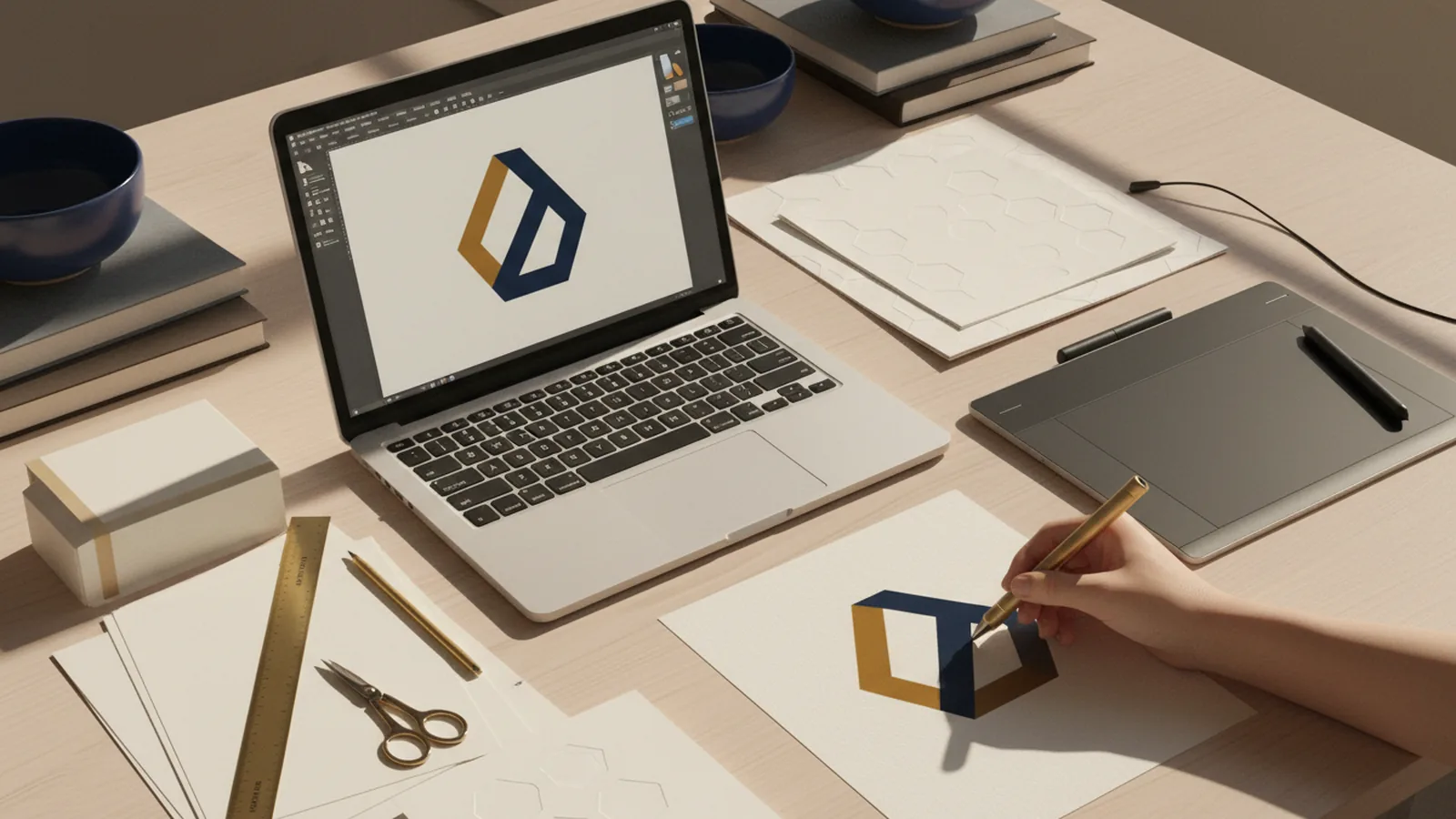
Next, sketch rough shapes on paper or in a notes app. Focus on silhouette and simple geometry. A logo that looks good at small sizes usually wins.
Write a few constraints before design work begins. Pick two colors max for the first pass. Choose one font style family so the look stays consistent.
- Goal: brand feel (friendly, bold, premium, playful)
- Use: web, print, social icons
- Constraints: colors, font style, layout type
Set up a clean CorelDRAW document
In CorelDRAW, start with a fresh document sized for your workflow. Use a vector-first approach so scaling stays sharp. A square artboard often helps for icon-like marks.
Turn on guides and snap settings. Alignment is easier when objects magnetize to guides and other edges. Use a grid only if it helps your layout.
Create layers for your logo components. For example, keep the mark on one layer and the text on another. This keeps edits simple later.
- Create layers for shapes and text
- Turn on snap and guides
- Use a clean background
- Save your file with versions
Build the logo mark with basic shapes
Most strong logos begin with circles, rectangles, and curves. Use the Ellipse tool for round parts and the Rectangle tool for blocks. Then adjust with the Shape tool until the silhouette feels right.
For smooth curves, draw with the Bezier or Pen tools. Keep control points minimal when possible. Fewer points usually mean cleaner shapes.
Unify the mark early. Combine overlapping shapes using Boolean operations like weld or trim. This helps you avoid tiny gaps and makes later resizing easier.
| Logo element | Corel tool | What to watch |
|---|---|---|
| Round emblem | Ellipse tool | Center and even stroke look |
| Sharp badge | Rectangle + corner options | Consistent corner radius |
| Curved symbol | Bezier/Pen + Shape tool | Control points and smoothness |
| Solid icon | Weld/trim operations | Edges stay watertight |

Choose fonts and place the wordmark
After the mark feels right, design the wordmark. Pick a font that matches the personality you planned. A modern brand often uses clean sans fonts.
Adjust letter spacing and weight. In logos, small spacing fixes create big clarity. If letters collide at small sizes, use a slightly lighter weight or more tracking.
Decide the layout: horizontal, stacked, or icon-over-text. Keep spacing consistent between the mark and text. Align text baselines so the logo looks intentional.
- Use one font family for consistency
- Set spacing for small-size readability
- Align the mark and the text grid
Apply colors with a simple palette
Limit your palette to keep the mark flexible. Start with one main color plus one accent. If you plan a monochrome version, test it early.
In CorelDRAW, use flat fills for the first design pass. Gradients and complex effects can blur at small sizes. Save advanced styling for a later refinement pass if needed.
Check contrast. If the logo is for dark and light backgrounds, create color pairs. Ensure text stays readable and the mark remains clear.
- Pick main color and one accent
- Test a one-color version
- Verify contrast on light and dark
- Lock colors once it looks right
Refine outlines, export, and prepare for use
Before exporting, inspect your shapes at multiple sizes. Zoom out until the logo becomes a small icon. Then zoom in to check edges and overlaps.
Convert strokes to outlines when needed. This prevents surprises when someone opens the file without matching fonts or settings. Also ensure your logo is fully vector if you want perfect scaling.
Export commonly used formats. Use SVG for web where supported and PDF for print workflows. Also export a transparent PNG for quick previews.
- Validate the logo at small icon size
- Convert strokes to curves for safe editing
- Export vector formats for scaling
- Export transparent previews for sharing
Common mistakes when you design a logo in CorelDRAW
One mistake is overbuilding early. If you add too many details, the logo can lose clarity when scaled down. Start simple, then refine only the parts that add meaning.
Another mistake is ignoring alignment. Many logos look “almost right” because spacing varies. Use guides and snap to keep edges and centers consistent.
Finally, avoid heavy effects as the main style. Drop shadows and complex gradients can reduce legibility. If you need depth, prefer subtle color choices instead.
- Too many details for small sizes
- Uneven spacing and alignment
- Effects that hurt readability
- No monochrome test
Quick checklist for how to design a logo using Corel draw
Use this checklist as a final pass. It keeps your workflow grounded in practical logo rules. If each item checks out, your logo will be easier to reuse.
When you finish this, save the final master file. Also keep a version for color variations. This saves time when you later need a new background or layout.
- Silhouette works at small size
- Mark and wordmark are aligned
- Palette is limited and consistent
- Vector edges are clean and closed
- Exported files include vector and preview
FAQ
- How to create a logo using CorelDRAW without getting messy shapes?
- Build with basic shapes first. Use Boolean operations to unify overlaps and reduce gaps. Then check the silhouette at small size.
- What’s the best workflow when you design a logo using Corel draw?
- Plan the look, set up guides, create the mark, then add the wordmark. Finish with a limited palette and export tests for light and dark backgrounds.
- How do I make sure my logo stays sharp when resized?
- Keep everything as vector objects. Convert strokes to curves if you need consistent outlines. Export SVG or PDF for quality scaling.
- Which colors should I use when I create logo files in CorelDRAW?
- Use one main color plus one accent for the first draft. Create a one-color version to confirm the logo works in monochrome.
- Can I use gradients in a logo I design in CorelDRAW?
- You can, but prioritize readability at small sizes. If gradients blur or reduce contrast, switch to flat fills.