How to Make a Logo High Resolution: Online and
Learn how to make a logo high resolution using vector, redraw, and export steps. Get crisp results for print, web, and social.
What “high resolution” really means for a logo
“High resolution” does not always mean “more pixels.” A logo is either pixel-based, vector-based, or a mix. If your logo is made from pixels, it will look blurry when you enlarge it.
Vector logos scale without losing sharp edges. That is why designers often prefer SVG and PDF vector exports. When you need a crisp logo everywhere, the goal is a scalable source.
If you only have a low-res PNG, you can still recover quality. The best path depends on how the original file was made and what you need it for.
- Pixel-based: PNG, JPG, GIF. Enlarging adds blur.
- Vector-based: SVG, PDF, AI (Adobe Illustrator). Resizes cleanly.
- Hybrid: Vector shapes plus raster textures. Quality depends on both parts.
First check your current logo file
Before you try any “upscale” tool, inspect what you already have. Look for an SVG or PDF export in your downloads or design folder. If you find one, you can make your logo high resolution without redrawing.
Next, check the image dimensions and the real use-case. For web, a logo might look fine at one size. For print, even a decent-looking PNG can fail.
Here is a quick triage you can do in minutes:
- Open the file and note its pixel size.
- Zoom in to see edge softness and text jaggies.
- Try printing at the size you need.
- If edges blur, plan to redraw or convert to vector.
| File you have | Best outcome | Typical export to use |
|---|---|---|
| SVG / PDF (vector) | Scale cleanly | SVG, PDF, PNG at required sizes |
| PNG / JPG (raster) | Often needs vector redraw | SVG or PDF first, then export PNG |
| Unknown source | Convert by retracing only if needed | SVG, then PDF for print |
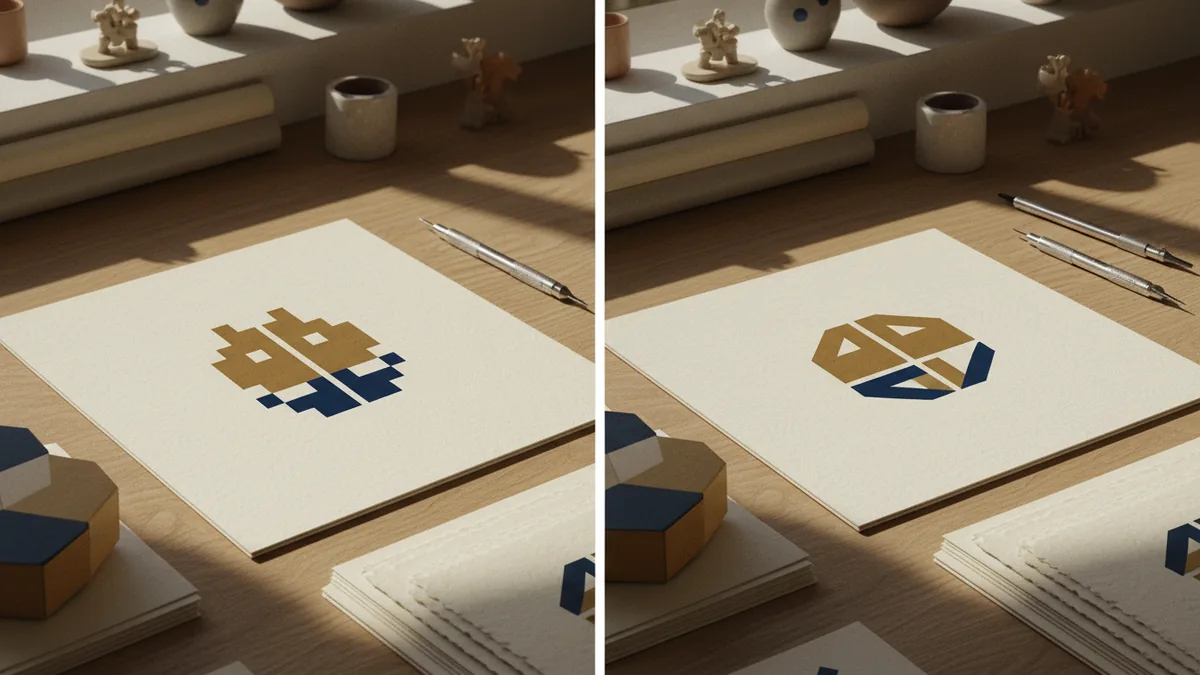
How to make your logo high resolution online with vectors
If you are asking how to make a logo high resolution online, start by checking for an existing vector. Many people stored a copy as SVG or PDF inside cloud folders or asset packs. If you cannot find one, the next step is tracing, but it still works best with a clean logo image.
Tracing turns shapes into vectors. It will not magically fix missing details, so prepare the source first. Use a logo on a plain background with strong contrast and no blur.
Then follow this practical flow. It is the same approach whether you use a web tool or desktop software.
- Upload the logo to a vector tracing tool.
- Pick a tracing mode for logos or line art.
- Adjust threshold so edges match, not fade.
- Preview the result and zoom to check text outlines.
- Export SVG and also export a PDF for print.
To make your logo high resolution, you should also keep the original colors. Use a single-color export if your client needs simple versions. Keep a full-color version for marketing and web use.
How to make logo high resolution from a low-res PNG
If you only have a small PNG, you have two realistic options. One is pure upscaling, which can sharpen edges but cannot recreate lost shape data. The other is redraw or tracing, which rebuilds curves and letterforms.
Pure upscaling is fine for quick web use. It is risky for brand-critical needs like packaging, signage, or logos with thin lines. Thin strokes are where upscaling usually breaks first.
If you want a reliable result, redraw as vector. That usually means rebuilding the logo using paths and clean curves. It takes more effort, but it makes your logo high resolution for every layout.
- Use upscaling: when the logo is simple and for small web sizes.
- Use tracing or redraw: when the logo has text, thin strokes, or strict geometry.
- Use manual cleanup: when the traced output has lots of tiny points.
Export settings that keep your logo sharp
Once you have an SVG or vector PDF, exporting correctly matters. Many people export PNG at an arbitrary size and end up with blurry results later. Decide the target use first, then export for that use.
For web, export PNG only if you need raster. Otherwise, keep SVG for responsive scaling. For print, use PDF or a high-quality vector output so your edges stay crisp.
Use these rules of thumb when you need PNG files:
- Export at least 2x the largest display size you expect on screen.
- Use a transparent background if your layout changes.
- Avoid JPEG for logos, since compression can smear edges.
- Keep a version with full color and a single-color version.
Finally, test the export. Place the logo into the same tool and layout where you will use it. Check at the final size, not at a convenient preview size.
Common mistakes when you try to make a logo high resolution
Most “failed” upgrades come from one of a few mistakes. First, people try upscaling a blurry PNG expecting it to become vector-like. Second, they trace a low-contrast image and accept the messy result.
Another common issue is mismatched backgrounds. If your original logo had a colored background baked in, exporting with transparency will change how it looks. Always verify on both light and dark backgrounds.
Finally, do not ignore the text. Tracing can turn letterforms into uneven blobs. If your logo includes wordmarks, spend time cleaning the curves or redraw the letters.
- Upscale alone when tracing should be used.
- Trace too aggressively and merge shapes.
- Export the wrong format for print needs.
- Skip testing at real size.
Best file pack to keep your logo usable
To avoid repeating this work later, build a small brand file pack. Store the scalable master plus the practical exports. That way, you can answer any request like “how to make my logo high resolution” with the right file instantly.
Your pack should include both vector masters and ready-to-use PNG exports. Include a transparent background option and a black and white version. If your brand uses multiple colors, also store a limited palette version.
| Purpose | Recommended format | Notes |
|---|---|---|
| Master source | SVG or vector PDF | Best for resizing and editing |
| Print use | PDF (vector) | Use for brochures and labels |
| Quick web use | SVG and PNG | PNG for platforms that need it |
| Dark/light layouts | Transparent PNG | Test on real backgrounds |
When you keep this pack, your logo stays crisp across decks, ads, and product pages.
FAQ
- How to make a logo high resolution from a blurry PNG?
- You can upscale, but it often won’t restore lost detail. For crisp results, trace or redraw it into a vector, then export PNG and PDF.
- How to make my logo high resolution online without design software?
- Use an online vector tracing tool if your logo has clear edges. Export SVG as the master, then export PDF for print and PNG for web.
- How to make a logo high resolution for print packaging?
- Use a vector PDF as the main file. Raster PNGs can work, but vector exports are safer for sharp text and thin lines.
- How to make your logo high resolution while keeping transparent background?
- Export PNG with transparency from your vector source. Also test the logo on both light and dark backgrounds before you lock it in.
- Why does my upscaled logo still look blurry?
- Upscaling can only enlarge existing pixels. If the original image is too low detail, only vector tracing or redraw will restore clean edges.