How to Make Your Logo PNG Files
Learn how to make a logo a PNG: choose the right format, resize, keep transparency, and export clean edges for web and print.

What “logo PNG” means and why it matters
A PNG is a common image format that can keep sharp edges and support transparency. That matters for logos because you often need to place them on different backgrounds. If your logo has a white box around it, it will look unprofessional on your site.
When people search for how to make logo png, they usually want one of two outcomes. They want a file that looks crisp on screens, or they want a PNG with a clear background. The best workflow depends on whether your original logo is a vector file or a pixel file.
Below is a practical way to create a logo PNG that stays clean at common sizes. You can follow it with free tools, and you can also adapt it to paid design software.
- Transparent background PNG for web and overlays
- High-resolution PNG for crisp display on cards and headers
- Consistent padding so the logo does not look cramped
Start with the right source file
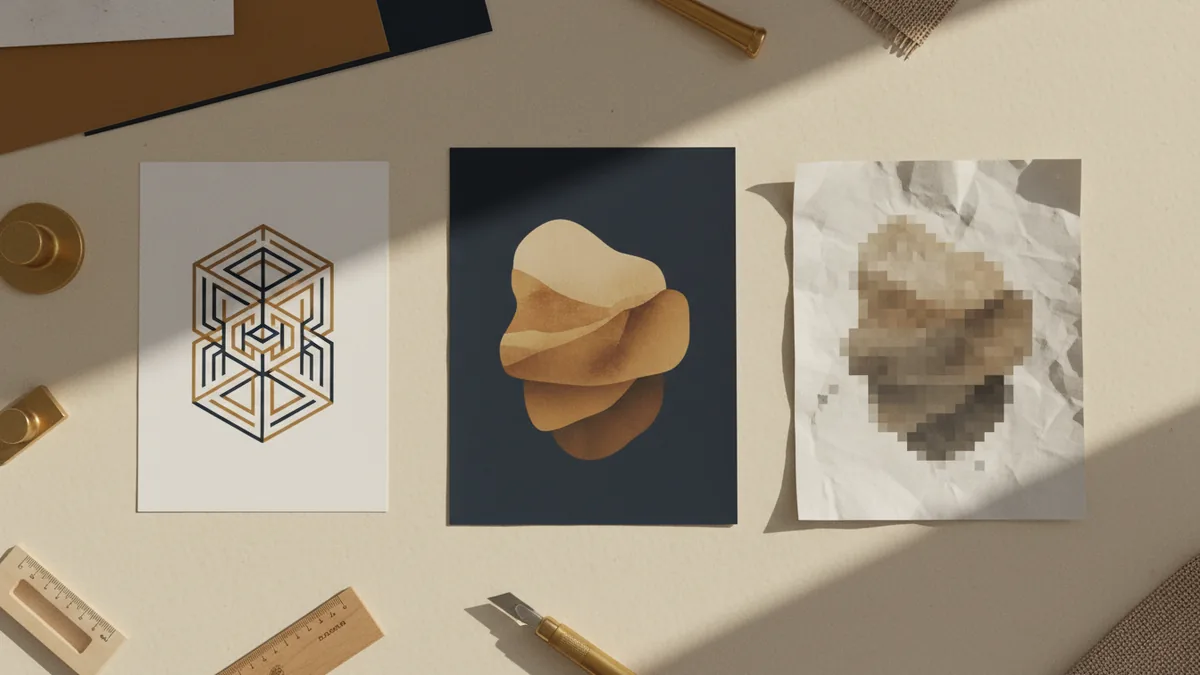
Your source file determines how easy it is to make logo png files that stay sharp. If you have a vector logo (often from Illustrator or similar tools), you can export perfect PNG edges. If you only have a low-resolution JPG or screenshot, the result may look blurry.
Look at the original logo file type. Vector formats usually include AI, EPS, SVG, or PDF. Pixel formats usually include PNG, JPG, and WebP. If your current file is pixel-based, you can still create a logo png, but you must manage expectations on sharpness.
Before you export, decide the purpose. A 512×512 PNG suits icons. A 2000-pixel wide PNG suits banners. That one choice helps you avoid rework later.
| Goal | Typical PNG size | Notes |
|---|---|---|
| Website favicon | 16–32 px or 64 px | Keep it simple and test on dark and light |
| App icon or badge | 512×512 | Export with padding to avoid edge clipping |
| Header or landing page | 1500–2500 px wide | Use transparency if you will place it on images |
How to create a logo PNG from vector artwork
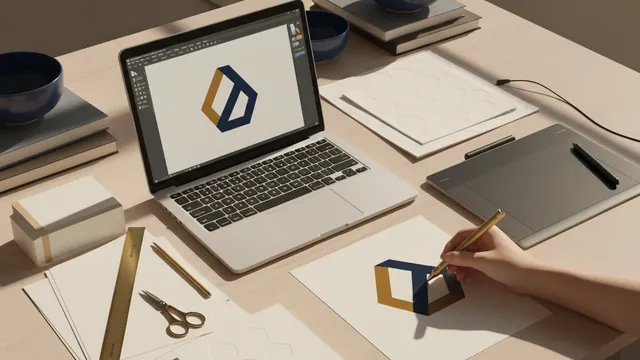
If you want to know how to make a logo a png cleanly, vectors are the easiest path. The workflow is usually the same across design tools. You export from the artwork canvas, not from a random screenshot.
First, open the vector file. Then crop or resize the canvas so it only contains the logo. Next, set a transparent background if your tool offers a “transparent” or “no background” option.
Finally, export as PNG at a high resolution. After that, downsize for web if needed. This keeps the logo edges crisp and reduces jagged lines.
- Open your logo file in your design tool.
- Fit the canvas to the logo and remove extra space.
- Turn on transparency by disabling any white or colored background.
- Export as PNG at a large size like 2000px wide.
- Check edges by placing the PNG over a dark and a light background.
How to make your logo PNG from an existing image
If you only have an image logo, you can still create a logo png. The key is removing the background and improving clarity. Start by finding the highest-quality original you can. A bigger source image usually produces a better result.
Use a background removal tool only when it produces clean boundaries. Some logos have thin strokes that can get cut off. After removing the background, zoom in and check around corners, letters, and small marks.
If the edges look rough, try sharpening lightly and re-export. Avoid extreme sharpening because it can create halos on transparent areas. When you ask what if logo png quality looks bad, this is often the cause.
- Use the largest source file you have
- Check thin lines after background removal
- Test on multiple backgrounds before you finalize
Common problems when you make logo in PNG format
Even when you follow the steps, a few issues show up often. You might end up with a logo that has a white background. You might see blurry edges or jagged corners. You might also notice that the logo sits too close to the image edge.
Here are quick fixes for the most common pain points. They apply whether you are learning how to create logo png in a design app, or using an online background tool. The goal is to get clean transparency and consistent spacing.
Problem: the PNG has a white box
This usually means the background layer was still present during export. Open the PNG and check if the background is truly transparent. If it is not, re-export with transparency enabled.
Problem: the logo looks blurry
This happens when the source is low-resolution or you export at too small a size. Export at a larger size when possible. If you only have a small source, you may need a better original.
Problem: edges look jagged or “haloed”
This is common when background removal uses a harsh threshold. Zoom in to inspect the outline area. If you see a colored fringe, try a softer edge or redo the cutout.
Problem: the logo is too close to the border
Leave a small padding area around the logo. Padding prevents clipping in certain tools and keeps spacing consistent. It also makes the file easier to place in templates.
What to do after you export your logo PNG
After you make logo png files, you should verify them in the real context. Place the PNG on a solid dark background and a solid light background. Then test it on an image background too, like a hero photo.
Also check file size. Very large PNGs can slow pages. If your logo is meant for web use, a slightly smaller PNG is often enough. Keep one high-resolution PNG in a “source” folder for future needs.
Finally, keep naming consistent. Use clear names like logo-mark, logo-full, and logo-icon. That makes it easy to find what you need later, even if you return after months.
- Test transparency over dark and light backgrounds
- Keep one high-res PNG for later uses
- Name files clearly so teammates can find them
FAQ: how to make a logo png
How to make a logo png with transparent background?
Export with transparency enabled, and remove any background layer. Then check the PNG by placing it over a dark background. If you still see a box, re-export with the background disabled.
How to create a logo png for a website header?
Choose a large width like 2000px, then downsize if needed. Use transparency if the header sits on images. Verify it looks sharp at the exact header height you use.
What if my logo PNG looks blurry?
That usually means the source was low-resolution or the export size was too small. Start from the best source file you can. If it is a vector, export larger for a sharper result.
How to make my logo png without jagged edges?
Use a vector source when you can. Keep transparency clean and avoid harsh background cuts. Zoom in on the outline and re-export if you see halos.
How to make your logo png for social media?
Pick a size that matches the platform and keep a transparent version too. Export at a high resolution so it stays crisp after resizing. Test the PNG after upload, because some platforms add their own sizing rules.
Can I make logo in PNG format if I only have a JPG?
Yes, but quality depends on the JPG quality. If the JPG is already blurry, the PNG cannot magically become sharp. Use background removal carefully and verify thin parts of the logo.
FAQ
- How to make a logo png with transparent background?
- Export the logo as PNG with transparency enabled, and disable any background layer. Then test it on a dark and a light background to confirm it is truly transparent.
- How to create a logo png for a website?
- Export at a large width, like 1500–2500px, and then resize if needed. Place the PNG on your site header background to check edge sharpness.
- What if logo png looks blurry or pixelated?
- That usually means the source is low-resolution or the export size was too small. Use the best original you have, ideally a vector, and export larger.
- How to make logo png without jagged edges or halos?
- Avoid harsh background removal and keep a smooth edge. If you can, start from vector art and export directly with transparency.
- How to create a logo png from a JPG logo?
- You can, but results depend on the JPG quality. Use background removal carefully, zoom in on thin parts, and verify on multiple backgrounds.